
Introduction
In this article we will go to provide an example for an up and running PostgreSQL container based on a customized image that we will go to build right now. This image includes the some customizations applied during container initialization process like configuring some PostgreSQL memory and connections parameters, creating databases and users, also automating a backup process PostgreSQL cluster databases.
In this post we will deploy three container images that covers the PG memory and connections configurations as well as the database and users creation, while in the next post we will cover how to establish an automated backup solution for your database cluster.
Source Code:
https://github.com/NaderSH/Container101forDBAs-Postgres
V1: The Basic Image
We will start by building a basic PosgreSQL image that just deploy a PostgreSQL 16 cluster and expose port 5432 as the PostgreSQL default port, this will be version 1 of our image and below is the dockerfile for this basic image.
V1 dockerfile
# Use the official PostgreSQL 16 image as the base
FROM postgres:16

# Document the exposed PostgreSQL port
EXPOSE 5432

# Switch user to postgres
USER postgres

# Default command to start PostgreSQL
CMD ["postgres"]
So, what the dockerfile for V1 does is simple use the PostgreSQL 16 image as the base image and grab it from official PostgreSQL docker image repository, then expose port 5432 as the default port of PostgreSQL, starting the container with user postgres instead of root as a security best practice to disable super user access inside containers and finally start the postgres process.
Below are the steps for building and deploying PostgreSQL image version 1, the commands are maily docker commands that running under PowerShell, however it is also easy to run it under shell as well:
V1 Image build & deployment steps
# Step 1: save the dockerfile into a certain path
<#
I will be using the following directory as an example:
/Users/my_user/databases_images/postgres_image/v1
The final dockerfile path is:
/Users/my_user/databases_images/postgres_image/v1/dockerfile
#>

# Step 2: build the image
docker build -t postgres-image:v1 '/Users/my_user/databases_images/postgres_image/v1'

# Step 3: check image existence
docker image ls | Where-Object {$_ -match "postgres-image"}

# Step 4: create docker container
docker run -d `
 --name postgres-container-1 `
 -e POSTGRES_PASSWORD=postgres `
 -v pgdataV1:/var/lib/postgresql/data `
 -p 5431:5432 `
 postgres-image:v1

# Step 5: check PostgreSQL container status
docker container ls | Where-Object {$_ -match "postgres-container-1"}
Connecting to V1 container
# Option 1: connect to PostgreSQL cluster
psql -h localhost -U postgres -p 5431
# Option 2: connect to PostgreSQL container
docker exec -it postgres-container-1 /bin/bash
V1 image cleanup “optional”
It is also possible to cleanup all the whole environment by removing the container and image “this is an optional step if you do not need the image and associated containers any more”:
# Step 1: removing the container
docker stop postgres-container-1
docker rm postgres-container-1

# Step 2: removing the volume
docker volume rm pgdataV1

# Step 3: removing the image
docker image rm postgres-image:v1
At this point we managed to build, deploy and run the V1 of PostgreSQL container, let us move now to the V2 level.
V2: Customized PG Configurations
Now, we will paly with this basic image and apply some changes to the PostgreSQL memory and connections, which can be required changes for a more advanced environment, as an example we will increase the shared buffers value “which controls the amount of memory provided for holding data blocks in memory”, work memory value “which controls the amount of memory provided for sort operations and hash tables”, and finally the max connections value “which controls the maximum number of concurrent connections allowed for database cluster”, assuming that we run a more complex environment that requires more memory and more connections.
All the above parameters are defined in the postgresql.conf file which need to be modified in our case and for doing that during the image build process we need to add a shell script to our image, this shell script will apply these changes to the configuration file:
update_pgconfig.sh
#!/bin/bash

# Path to the PostgreSQL configuration file
PG_CONF="/var/lib/postgresql/data/postgresql.conf"

# Parameters to update
SHARED_BUFFERS="512MB"
WORK_MEM="16MB"
MAX_CONNECTIONS="200"

echo "Updating postgresql.conf with custom settings..."

# Modify parameters in the configuration file using sed
sed -i "s/^#*shared_buffers = .*/shared_buffers = '$SHARED_BUFFERS'/" $PG_CONF
sed -i "s/^#*work_mem = .*/work_mem = '$WORK_MEM'/" $PG_CONF
sed -i "s/^#*max_connections = .*/max_connections = '$MAX_CONNECTIONS'/" $PG_CONF

echo "Custom PostgreSQL settings applied successfully."
So, by taking a quick look at these parameter’s values in V1 PostgreSQL cluster and compare it with the values defined in shell script update_pgconfig.sh above, as an example for one of these parameters we can find that SHARED_BUFFERS is defined to be 512MB instead of 128MB, below are the values on V1 cluster:
psql -h localhost -U postgres -p 5432
postgres=# SELECT name, setting, unit, short_desc FROM pg_settings WHERE name IN ('shared_buffers', 'work_mem', 'max_connections');
Please note that the value 16384 defines the number of data blocks “which is ~ 8KB in size” that PostgreSQL uses for storing data in memory and not the size of buffer itself, so to get the buffer size you need to apply the below calculation:
16384 blocks * 8 KB = 131072 KB
131072 bytes / 1024 = 128 MB
Also, it is recommended to structure your container deployed files well, and for that we can optionally create a directory init and include there all files required during container initialization process, for V2 image we only have to add there update_pgconfig.sh shell script.

Now, we can examine the dockerfile for V2 image:
V2 dockerfile
# Use the official PostgreSQL 16 image as the base
FROM postgres:16

# Copy the configuration update script into the image
COPY ./init/update_pgconfig.sh /usr/local/bin/update_pgconfig.sh

# Ensure the script is executable
RUN chmod +x /usr/local/bin/update_pgconfig.sh

# Copy initialization scripts to auto-execute during first run
COPY ./init/ /docker-entrypoint-initdb.d/

# Document the exposed PostgreSQL port
EXPOSE 5432

# Switch user to postgres
USER postgres

# Default command to start PostgreSQL
CMD ["postgres"]
So, what the dockerfile is doing here is again building postgres container using 16 version, and the new stuff here is that it copies the shell script update_pgconfig.sh from our local machine to the container.
After that we need to ensure that the file is executable and that is why we execute chmod command.
Also, it is important to copy the shell script and any other script we need to execute from local machine to /docker-entrypoint-initdb.d/, why?, in order to make sure that the file will be executed automatically during the initialization phase “which is the desired behavior we need in order to apply memory and connections changes we need to have in V2 image”.
V2 Image build & deployment steps
# Step 1: save the dockerfile into a certain path
<#
I will be using the following directory as an example:
/Users/my_user/databases_images/postgres_image/v2
The final dockerfile path is:
/Users/my_user/databases_images/postgres_image/v2/dockerfile
#>
# Step 2: build the image
docker build -t postgres-image:v2 '/Users/my_user/databases_images/postgres_image/v2'

# Step 3: check image existence
docker image ls | Where-Object {$_ -match "postgres-image"}

# Step 4: create docker container - we define a different local port "5432" than V1 port "5431"
docker run -d `
 --name postgres-container-2 `
 -e POSTGRES_PASSWORD=postgres `
 -v pgdataV2:/var/lib/postgresql/data `
 -p 5432:5432 `
 postgres-image:v2

# Step 5: check PostgreSQL container status
docker container ls | Where-Object {$_ -match "postgres-container-2"}

# Step 6- Examine the container logs
docker logs postgres-container-2
Now in step 6, the logs says that script update_pgconfig.sh has been executed succssfully and the customized PostgreSQL settings applied successfully.

Connecting to V2 container
Now we can also connect to the container, whether by connecting to PostgreSQL cluster directly or by connecting to the container itself:
# Option 1: connect to PostgreSQL cluster, please note that we differentiate between the two containers (v1 & v2) via port number!!
psql -h localhost -U postgres -p 5432
# Option 2: connect to PostgreSQL container
docker exec -it postgres-container-2 /bin/bash
So, the V2 container acheived the goal of applying special configurations for PostgreSQL cluster memory and connections, now the next step is V3!!
V3: Customized PG Initialization
In V3 we will add another feature to the container to show how to execute SQL scripts during container initilization, so as an example we can create some databases, users and authorize these users on the databases so they can start doing their work immediatly after having PostgreSQL cluster up and running.
And in order to make sure that users are allowed to connect to your PostgreSQL cluster remotely, we need to review the following settings:
1- PostgreSQL port is exposed: this is configured in the dockerfile for the PG image with the default port for PostgreSQL 5432.
2- Parameter listen_addresses in postgresql.conf is configured with ‘*’ not ‘localhost’: we can examine that using the below command:
# PowerShell
docker exec -it <container-name> /bin/bash -c 'cat /var/lib/postgresql/data/postgresql.conf' | Where-Object {$_ -match 'listen_addresses'}

# Shell
docker exec -it <container-name> /bin/bash -c 'cat /var/lib/postgresql/data/postgresql.conf' | grep -a listen_addresses
3- Remote connections are allowed in pg_hba.conf: this can be examined by having the value of allowed connections table looks something like below:
# TYPE      DATABASE      USER      ADDRESS
host        all           all       all or 0.0.0.0/0
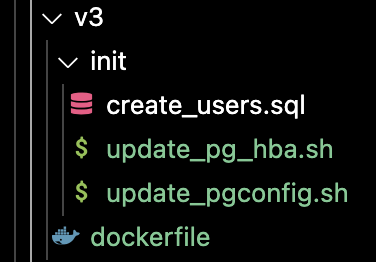
In our situation, we will assume that point 2 and 3 are not alraedy fulfilled “point 1 is fulfilled already from the first image V1” and then we will apply the above required changes to postgresql.conf and pg_hba.conf using shell scripts update_pgconfig.sh & update_pg_hba.sh, we will modify update_pgconfig.sh that already exists from V2 image by adding listen_addresses = ‘*’ and add a new file to our initilization process update_pg_hba.sh which will add line “host all all 0.0.0.0/0 scram-sha-256” to pg_hba.conf file to allow remote conections from all hosts for all users and databases using password authentication using scram-sha-256 hashing method.
Our container deployed files directory should looks like below indicatings which files to be deployed to the container during initialization:
create_users.sql
-- Create the databases
CREATE DATABASE db1;
CREATE DATABASE db2;

-- Create the users with static passwords
CREATE USER user1 WITH PASSWORD 'staticpassword1';
CREATE USER user2 WITH PASSWORD 'staticpassword2';

-- Grant ownership of databases
GRANT ALL PRIVILEGES ON DATABASE db1 TO user1;
GRANT ALL PRIVILEGES ON DATABASE db2 TO user2;
update_pg_hba.sh
#!/bin/bash

# Path to pg_hba.conf
PG_HBA="/var/lib/postgresql/data/pg_hba.conf"

# The line to be added if it doesn't exist
LINE="host all all all scram-sha-256"

# Check if the line already exists in the pg_hba.conf file
if ! grep -Fxq "$LINE" "$PG_HBA"; then
 # If the line does not exist, append it to the file
 echo "Modifying pg_hba.conf to allow connections from any IP..."
 echo "$LINE" >> "$PG_HBA"
else
 echo "The line '$LINE' already exists in pg_hba.conf. No changes made."
fi

# Reload the PostgreSQL configuration
echo "Reloading PostgreSQL configuration..."
pg_ctl reload
update_pgconfig.sh
#!/bin/bash

# Path to the PostgreSQL configuration file
PG_CONF="/var/lib/postgresql/data/postgresql.conf"

# Parameters to update
SHARED_BUFFERS="512MB"
WORK_MEM="16MB"
MAX_CONNECTIONS="200"
LISTEN_ADDRESSES="'*'"

echo "Updating postgresql.conf with custom settings..."

# Modify parameters in the configuration file using sed
sed -i "s/^#*shared_buffers = .*/shared_buffers = '$SHARED_BUFFERS'/" $PG_CONF
sed -i "s/^#*work_mem = .*/work_mem = '$WORK_MEM'/" $PG_CONF
sed -i "s/^#*max_connections = .*/max_connections = '$MAX_CONNECTIONS'/" $PG_CONF

# Modify listen_addresses to allow remote connections
sed -i "s/^#*listen_addresses = .*/listen_addresses = $LISTEN_ADDRESSES/" $PG_CONF

echo "Custom PostgreSQL settings applied successfully."
V3 dockerfile
# Use the official PostgreSQL 16 image as the base
FROM postgres:16

# Copy the configuration update script into the image
COPY ./init/update_pgconfig.sh /usr/local/bin/update_pgconfig.sh

# Copy the connectivity update script into the container
COPY ./init/update_pg_hba.sh /usr/local/bin/update_pg_hba.sh

# Copy the SQL initialization script to the container
COPY ./init/create_users.sql /usr/local/bin/create_users.sql

# Ensure the scripts are executable
RUN chmod +x /usr/local/bin/update_pgconfig.sh
RUN chmod +x /usr/local/bin/update_pg_hba.sh

# Copy initialization scripts to auto-execute during first run
COPY ./init/ /docker-entrypoint-initdb.d/

# Document the exposed PostgreSQL port
EXPOSE 5432

# Switch user to postgres
USER postgres

# Default command to start PostgreSQL
CMD ["postgres"]
Nothing new here in this dockerfile, we just added a new shell script for pg_hba.conf configurations and also a SQL script create_users.sql for creating databases and users.
V3 Image build & deployment steps
# PowerShell

# Step 1: save the dockerfile into a certain path
<#
I will be using the following directory as an example:
/Users/my_user/databases_images/postgres_image/v3
The final dockerfile path is:
/Users/my_user/databases_images/postgres_image/v3/dockerfile
#>

# Step 2: build the image
docker build -t postgres-image:v3 '/Users/my_user/databases_images/postgres_image/v3'

# Step 3: check image existence
docker image ls | Where-Object {$_ -match "postgres-image"}

# Step 4: create docker container - we define a different local port "5433" than V1 & V2 ports ("5431" & "5432")
docker run -d `
 --name postgres-container-3 `
 -e POSTGRES_PASSWORD=postgres `
 -v pgdataV3:/var/lib/postgresql/data `
 -p 5433:5432 `
 postgres-image:v3

# Step 5: check PostgreSQL container status
docker container ls | Where-Object {$_ -match "postgres-container-3"}

# Step 6- Examine the container logs
docker logs postgres-container-3

# Step 7- Examine the connectivity configured values
docker exec -it postgres-container-3 /bin/bash -c 'cat /var/lib/postgresql/data/pg_hba.conf'
docker exec -it postgres-container-3 /bin/bash -c 'cat /var/lib/postgresql/data/postgresql.conf' | Where-Object {$_ -match 'listen_addresses'}

# Step 8- Test connecting via created users
# Connect from localhost
psql -h localhost -U user1 -d db1 -p 5433
# Connect from remote host
psql -h <Container-Host-IP-address> -U user1 -d db1 -p 5433
Conclusion
In this post we have created three images that covers basic PostgreSQL container setup, applying some configurations changes to PostgreSQL cluster and finally creating databases and users and configured remote connectivity to cluster during the container initialization process, in the next post we will cover how to build a backup solution for this PG cluster which will also include some new techniques to be applied like supervisord and docker-compose.
 SQLSpark - Database Engineering & Architecture
Leave a comment